Portal User Guide

User tutorial to sign up for and navigate the new FHP Patient Portal
Enrollment Instructions
If you had an FMH Patient Portal account prior to June 1, 2026, you are already enrolled in the new portal and navigating it will be very familiar to you. If you have never had an FMH portal account, please follow the steps outlined below.
Self-Enrollment
If you have received care at an FHP facility, you have the option to self-enroll in the FHP Patient Portal. Visit Foundationhealth.org/patient_portal and select the self-enrollment link to get started.
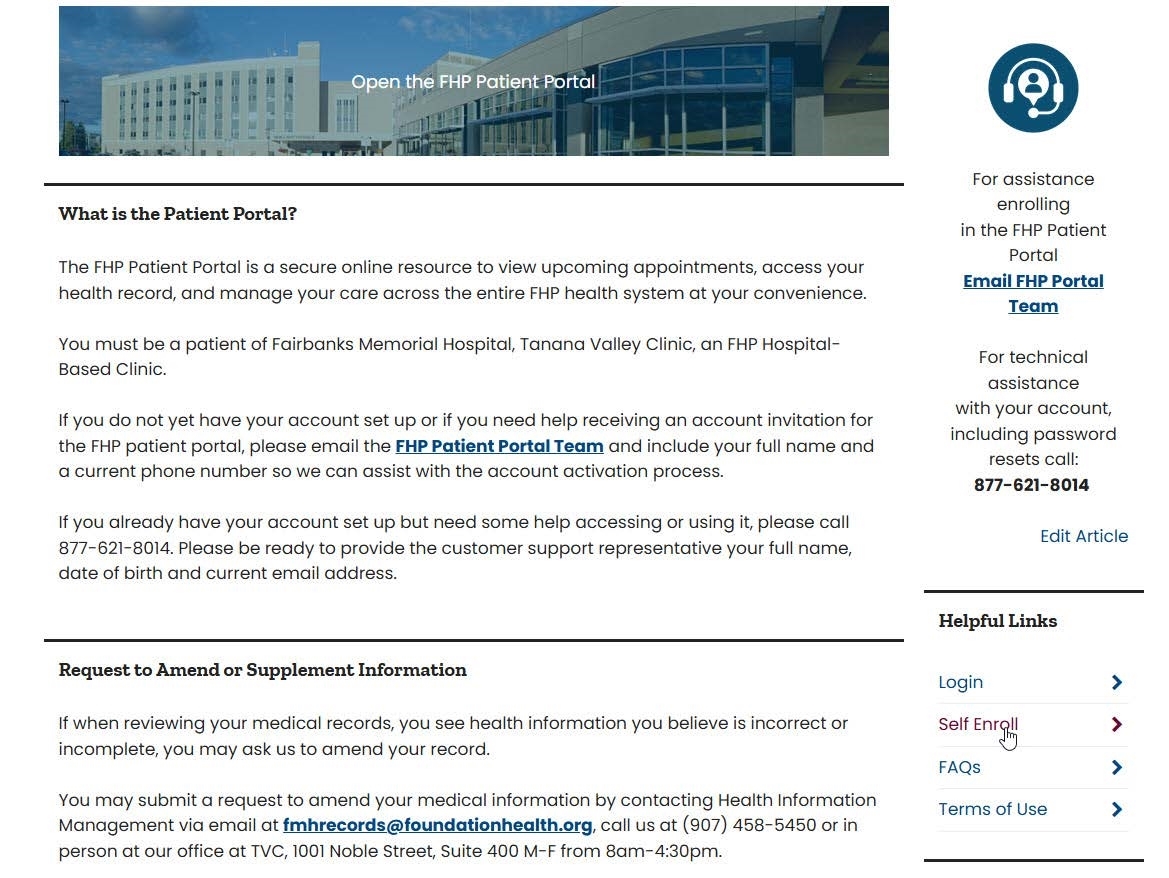
Verify your Identity
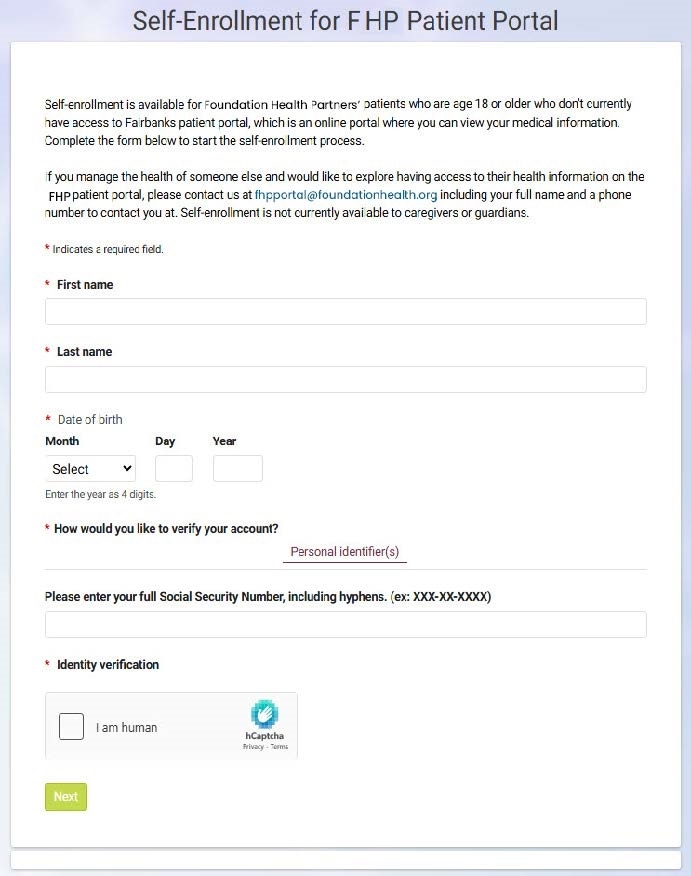
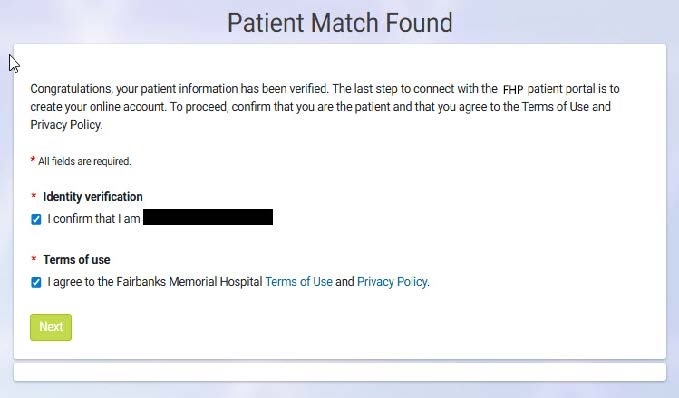
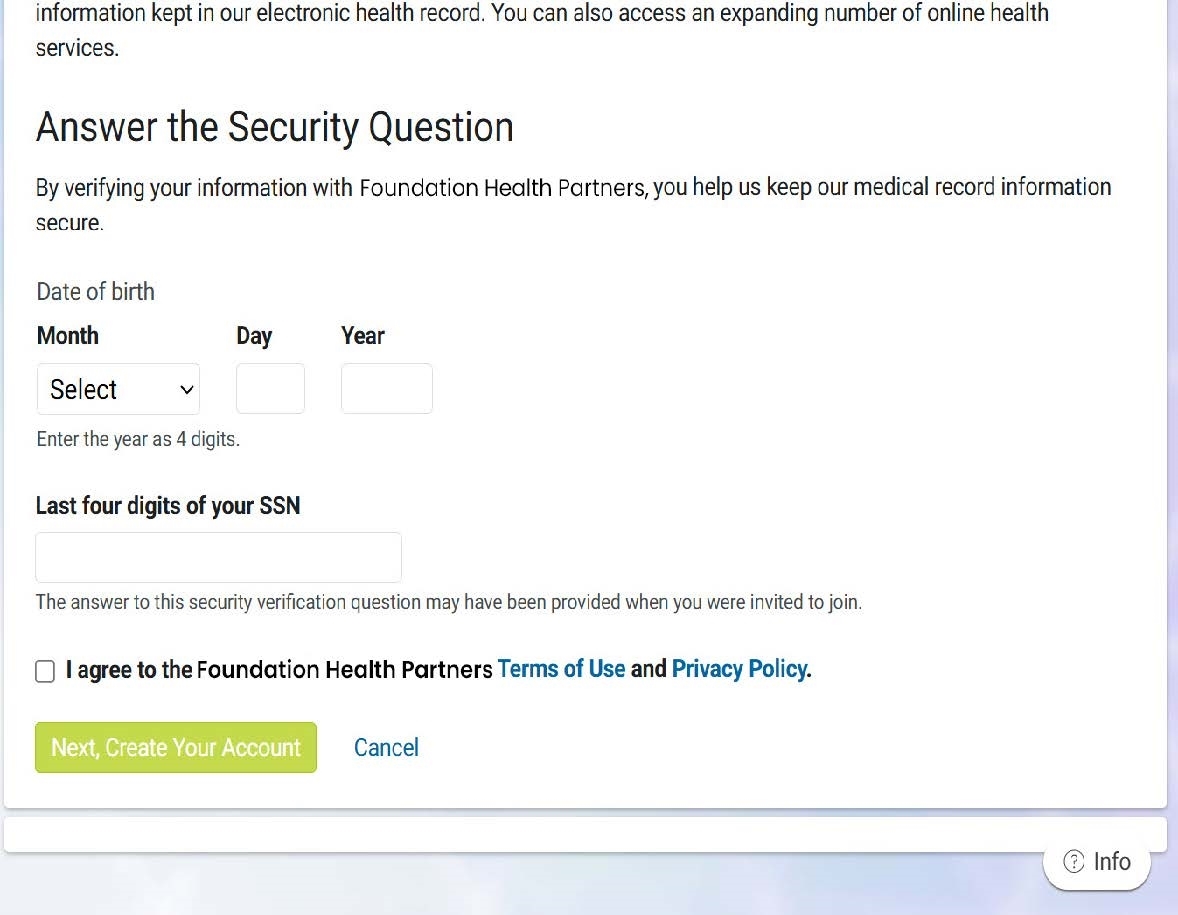
Next you will complete a secure form by entering your first and last name, date of birth and your full social security number. Our system will perform a search, which may take a few moments. If you are found in the system, you will be prompted to confirm your identity and asked to agree to the FHP terms of use and privacy policy.
 |  |
If a patient match is not found, email fhpportal@foundationhealth.org to request an invitation email.
Invitation Email
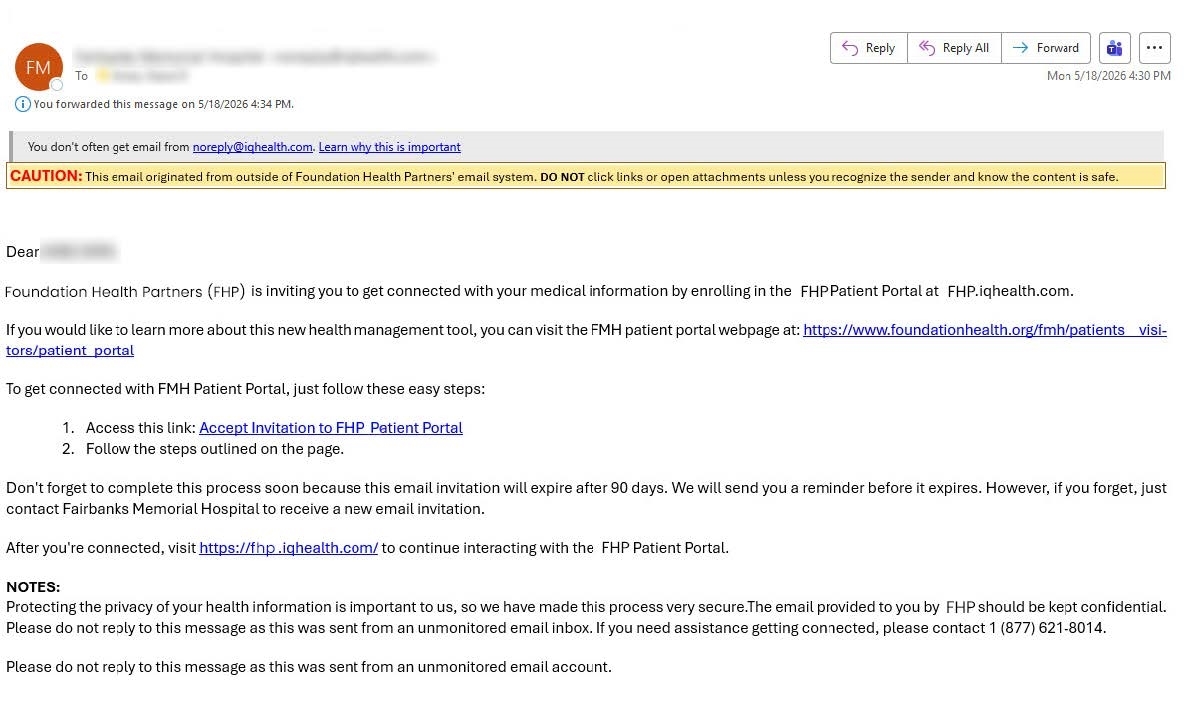
Below is an example of the invitation email you will receive from one of our staff members. Once you receive the email, follow the steps to sign up for your patient portal.
The first step is to click the blue ‘accept invitation” link so you can access your FHP Patient Portal. Then follow the steps outlined on the page. You’ll need to complete this process soon because the email will expire in 90 days. We’ll send you a reminder before it expires, but if you forget, just contact us and we’ll send you a new email invitation.
Setting Up Your Account
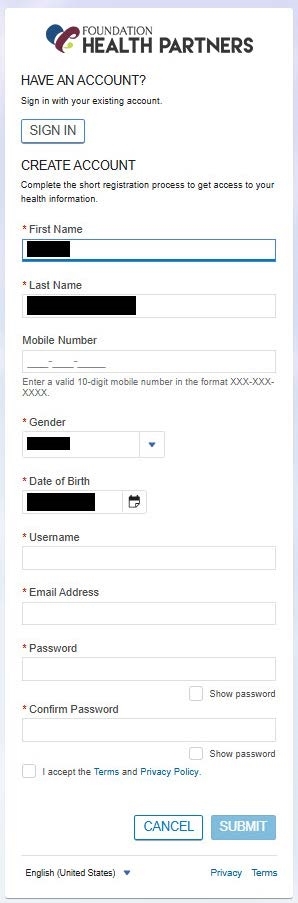
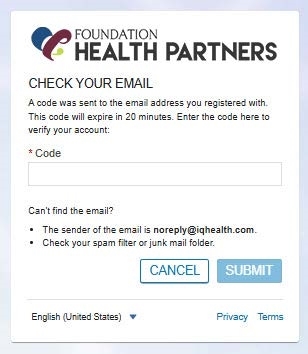
After you accept the invitation, you’ll have to set up your account by filling out some personal information. Once you do that, make sure you agree to the terms of use and privacy policy. Then click create your account. You will be emailed a code to verify your account. Enter the code in the labeled field when prompted.
 |  |  |
Log Into Your Account
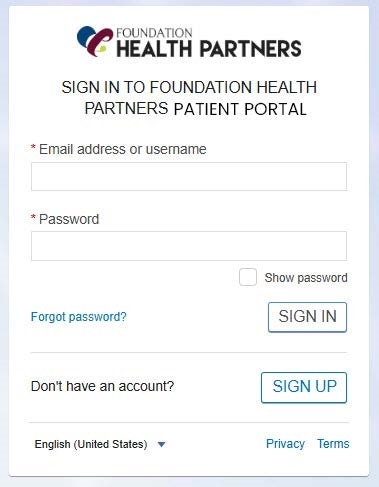
After you’ve completed filling out the information that sets up your patient portal, go ahead and login to your portal using the email and password you selected while setting up your account.
Navigating Your Portal
Navigating Your Patient Portal
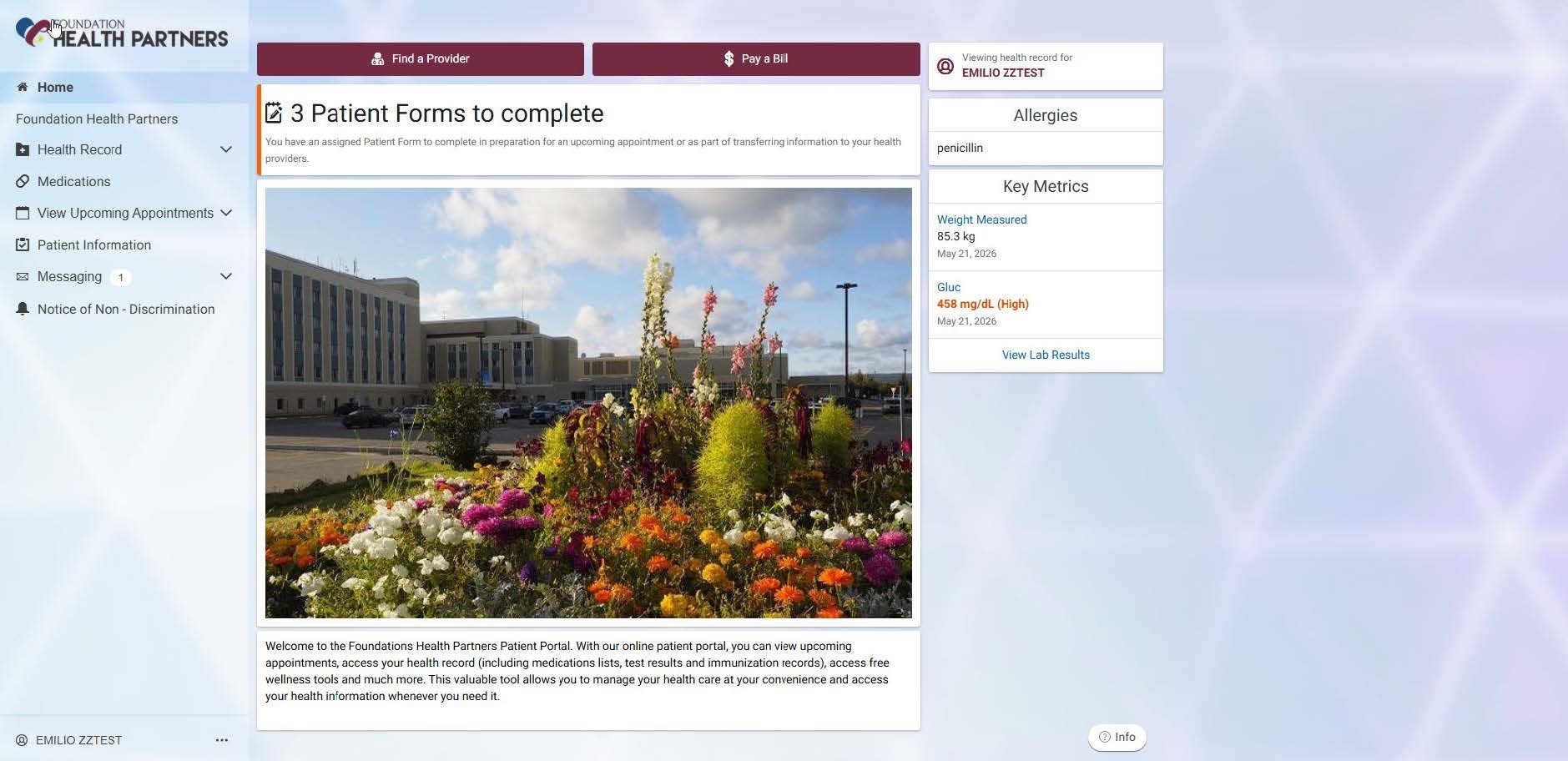
Upon logging in, you will first see your dashboard as shown below. On the left-hand side of your dashboard you’ll notice there are several options, like health records, medications, view upcoming appointments, patient information or messaging. You can also search for FHP providers and connect to FHP bill pay through the FHP patient portal.
Viewing Upcoming Appointments
One feature of your FHP patient portal is the appointment section, where you can view your upcoming appointments. Appointment requests can be made through the messaging center.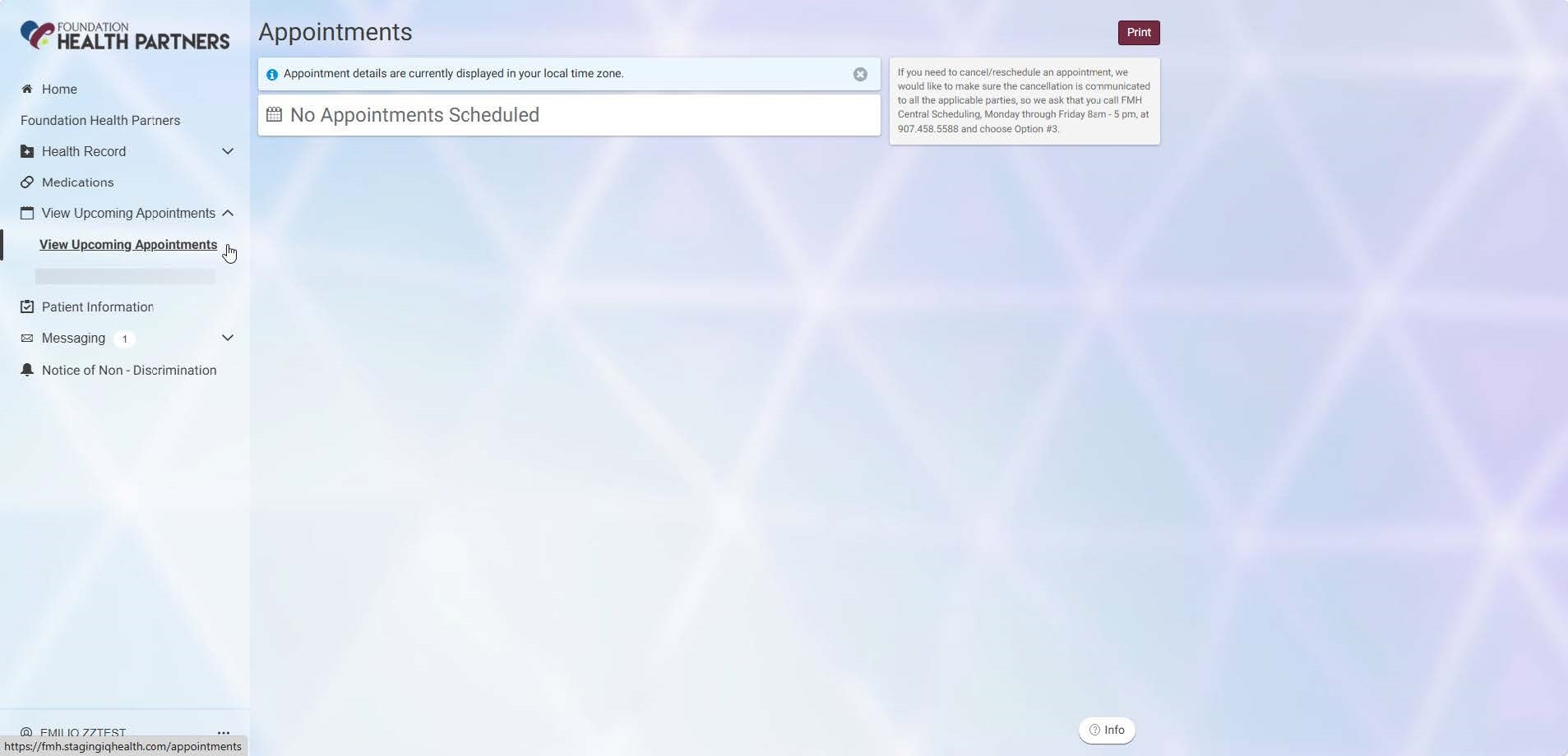
Navigating Your Patient Portal-Dropdown Menus
You can click the dropdown arrow to access a larger menu of items. These feature things like lab results, visit summaries, and imaging documents. Dropdown examples are provided below.
Health Record/Health Profile -view current medications, immunizations,current allergies and general health issues.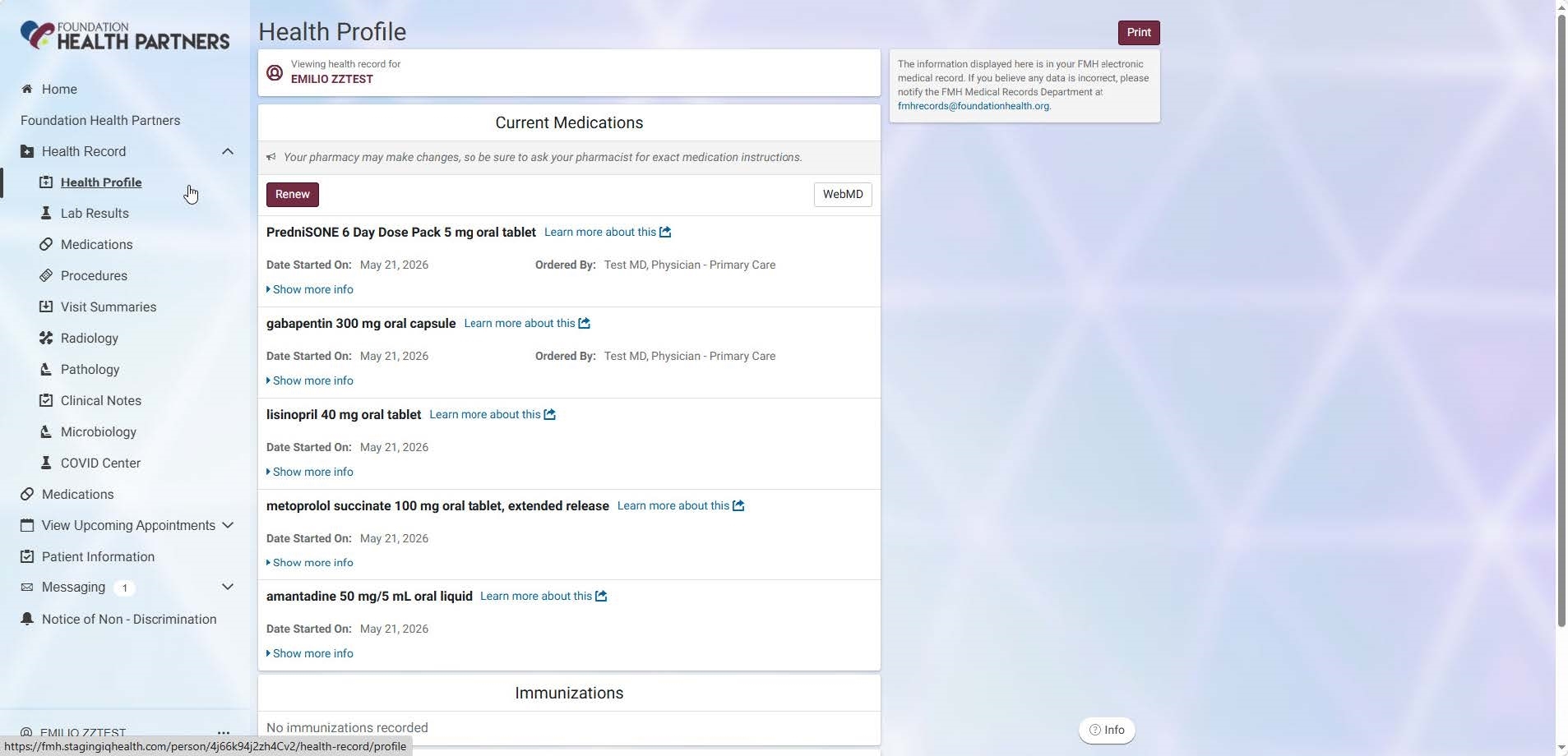
Health Record/Lab Results -review most recent lab results, may also be filtered by date range.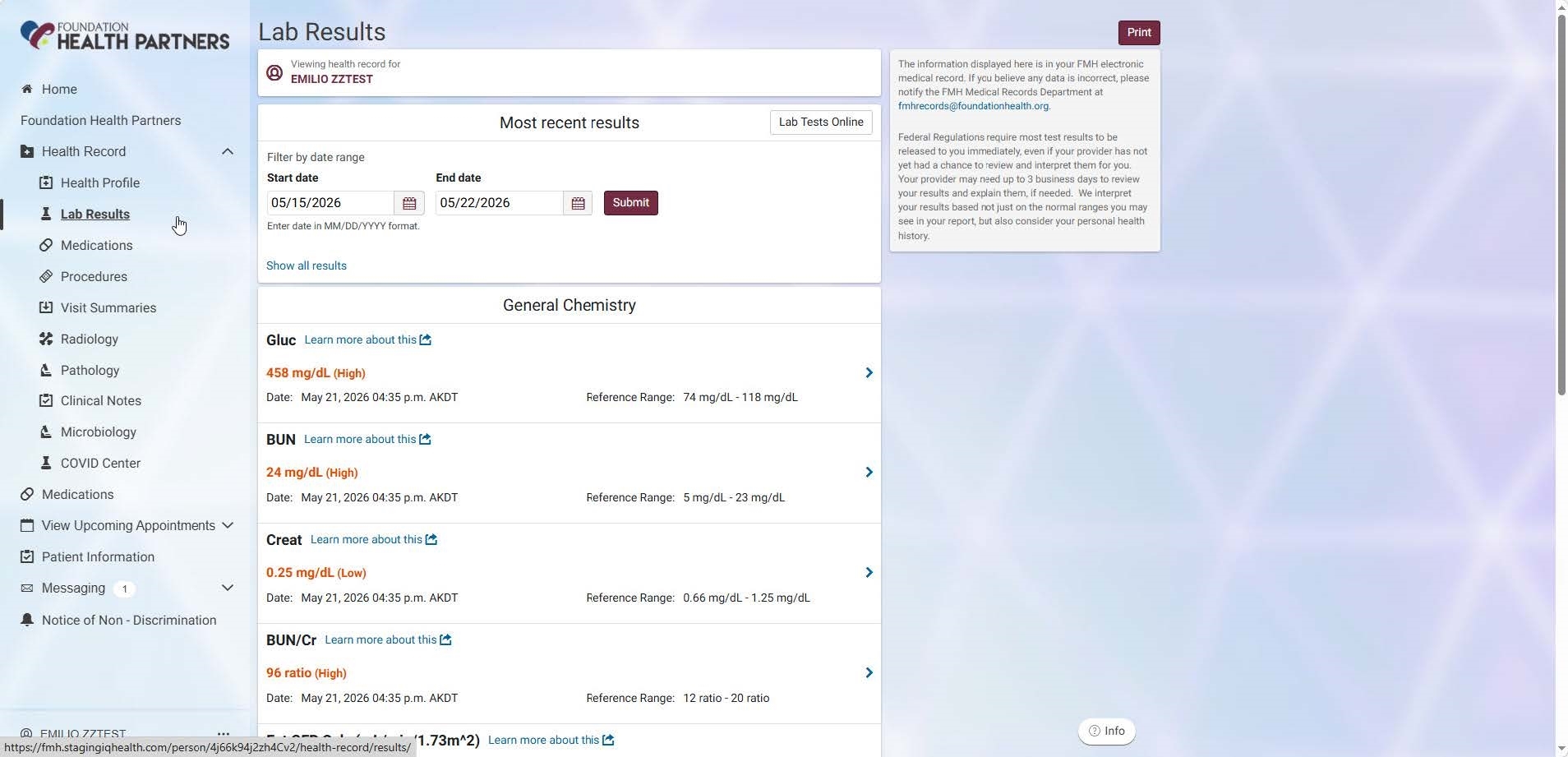
Health Record/Medications -view current list of medications and which provider ordered them.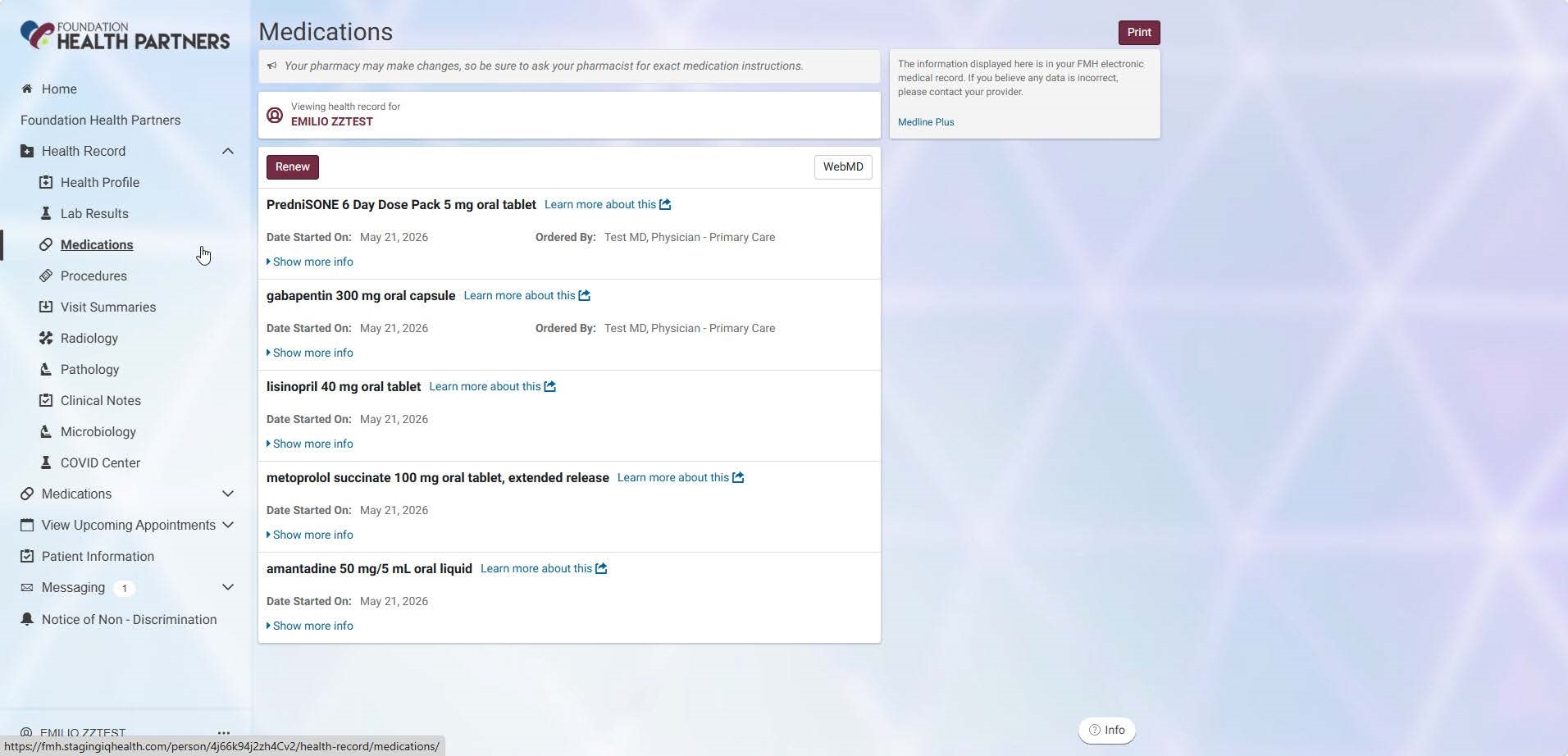
Health Record/Visit Summaries -view and download visit summaries that include important information about the care provided on that visit.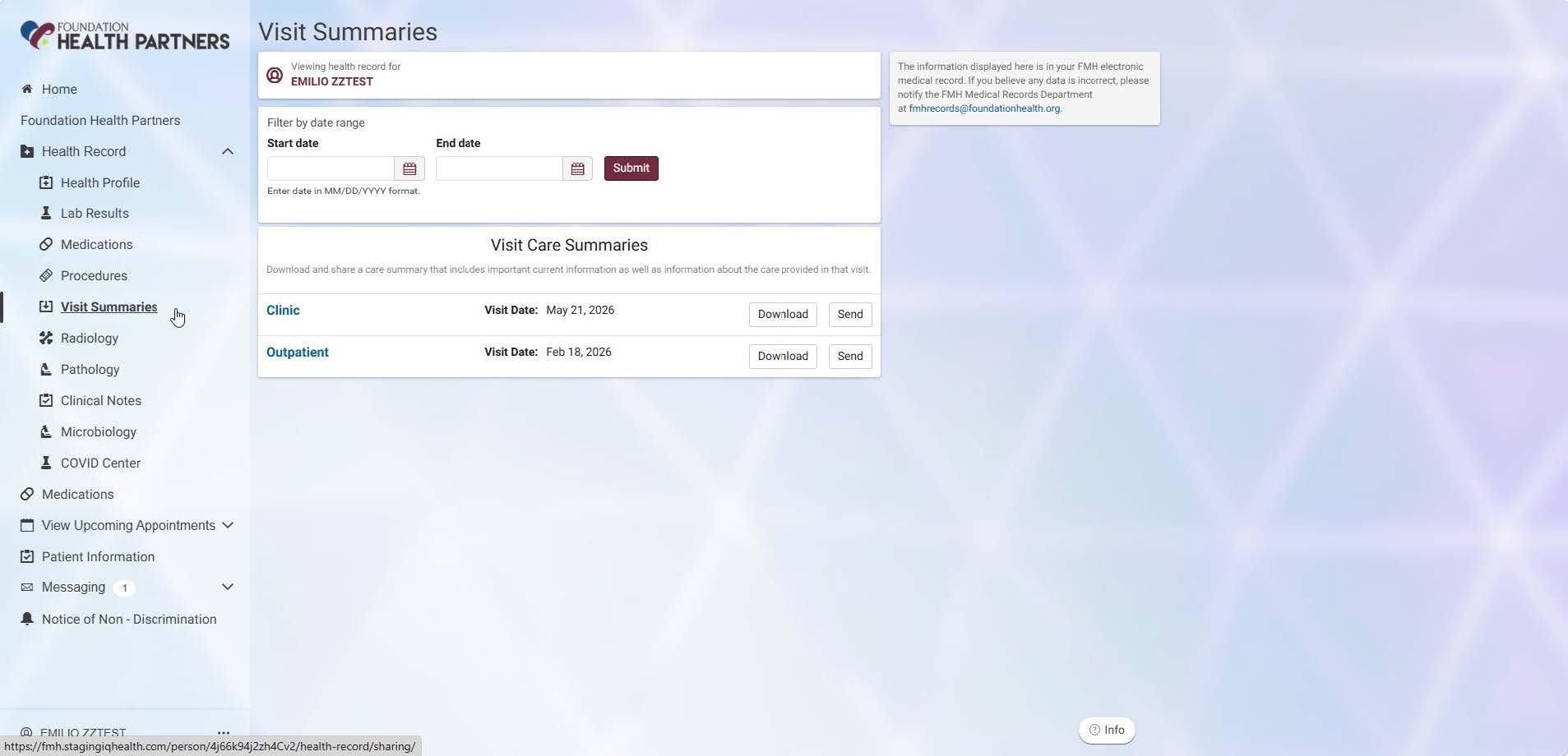
Health Record/Procedures -view all procedures performed at FHP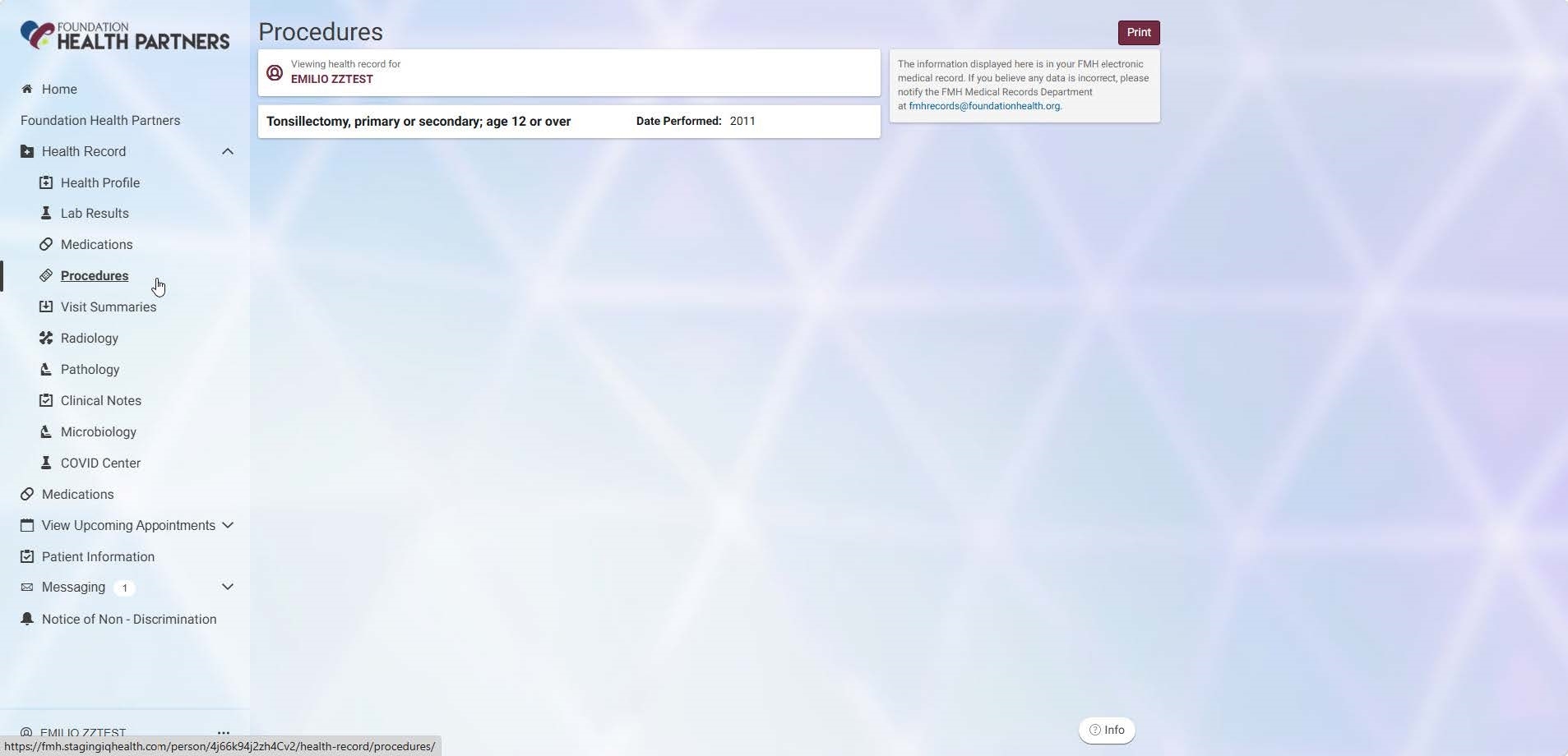
Care Team Messaging
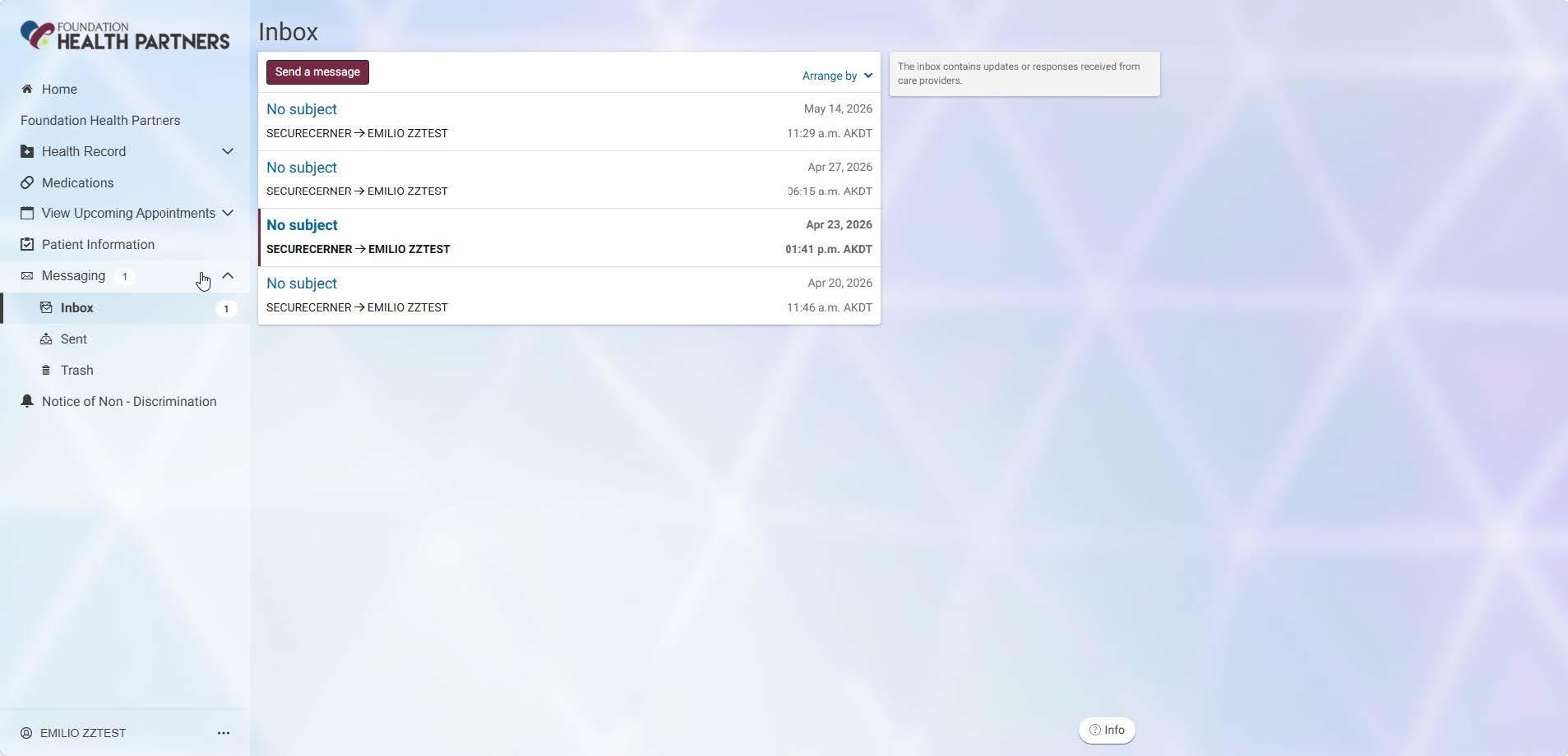
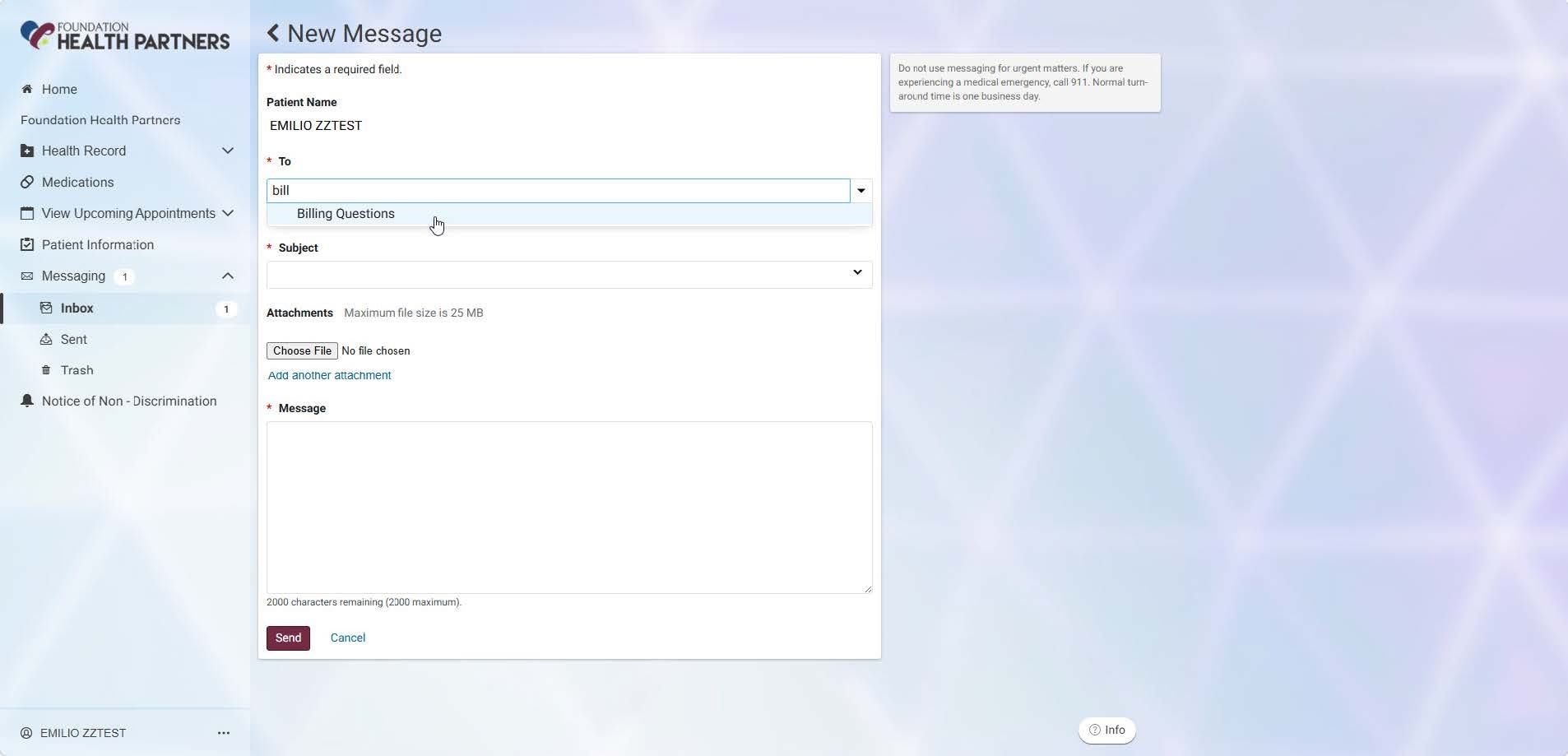
Another useful feature of the FHP Patient Portal is the ability to send messages to your care team. To send a messaging section and click “send message” Here you can choose your address options, write your message and upload documents if needed.

For assistance enrolling
in the FHP Patient Portal
Email FHP Portal Team
For technical assistance
with your account,
including password resets call:
877-621-8014
Page Options


